To refresh data in Power BI Service from Data Hub, an on-premises data gateway is required. The gateway is a small Windows program that connects Power BI Service to Data Hub. When a refresh runs, the Service passes the query to the gateway, and the gateway fetches the data from Data Hub. More information: On-premises data gateways in Power BI.
Which gateway to choose
Personal mode is the easy option to start with. It runs as a normal app on your computer, so it only works while the computer is on and you are signed in. It supports Import mode only, which is enough for scheduled refresh.
Standard mode is installed as a service on a computer that stays on, can be shared, and is the option Microsoft recommends for long-term use.
This guide describes the setup for personal mode. If you prefer Standard mode, please contact your IT department.
How to install and set up the gateway in personal mode
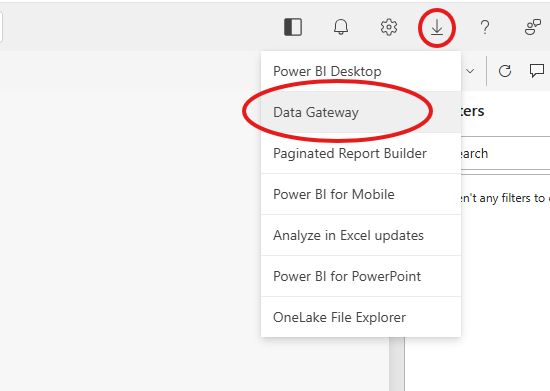
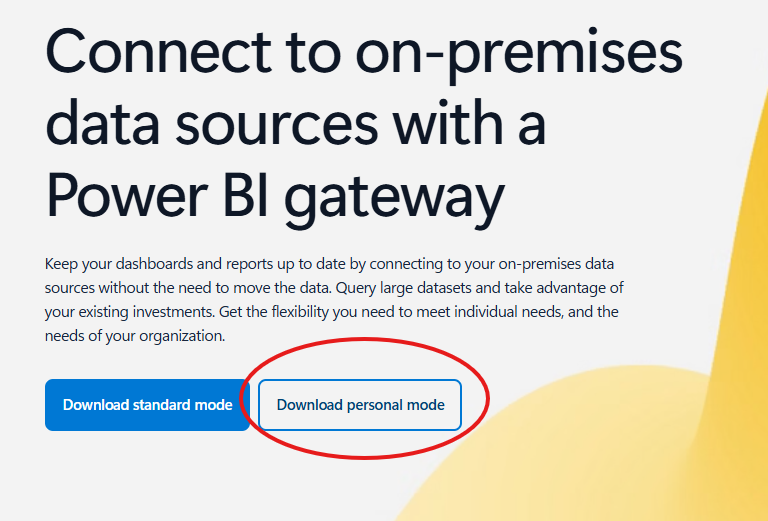
In Power BI Service, click the download icon in the top bar and choose Data Gateway. You can also use the download page on microsoft.com.
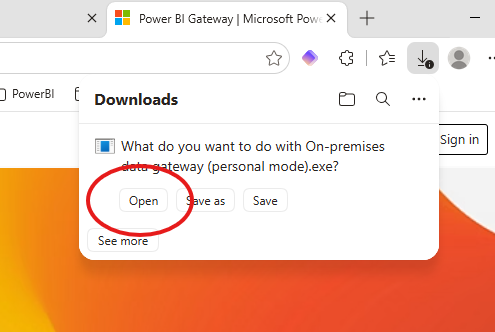
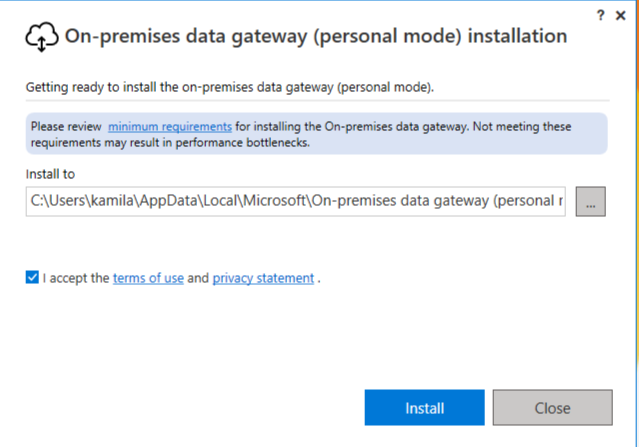
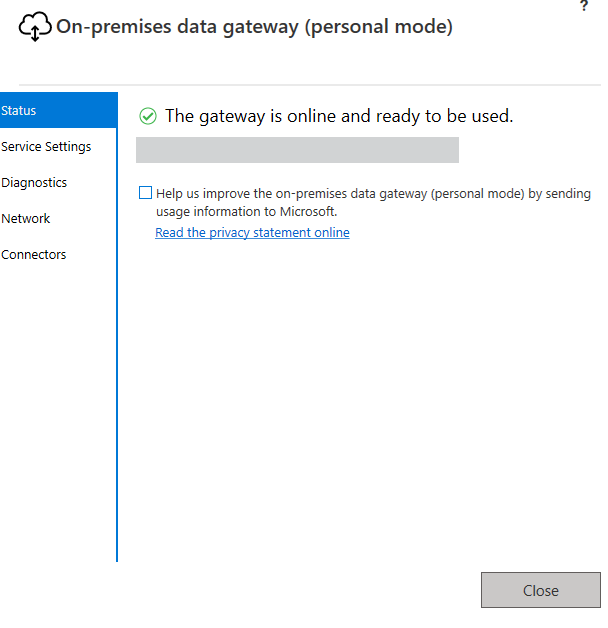
Run the installer, choose On-premises data gateway (personal mode), click Next, then Install.
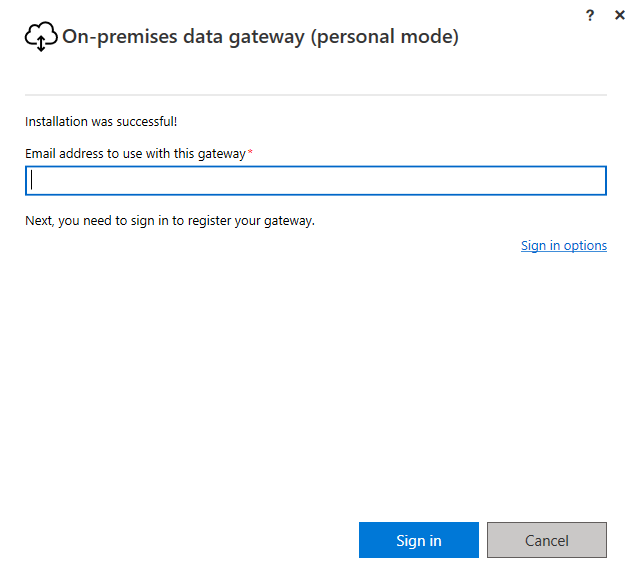
Sign in with the same Microsoft account you use for Power BI Service.
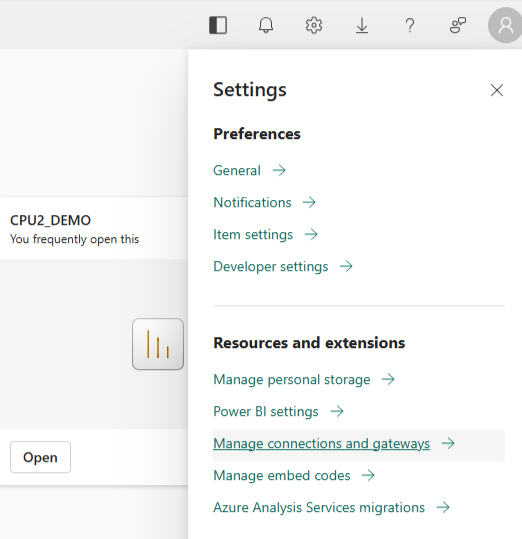
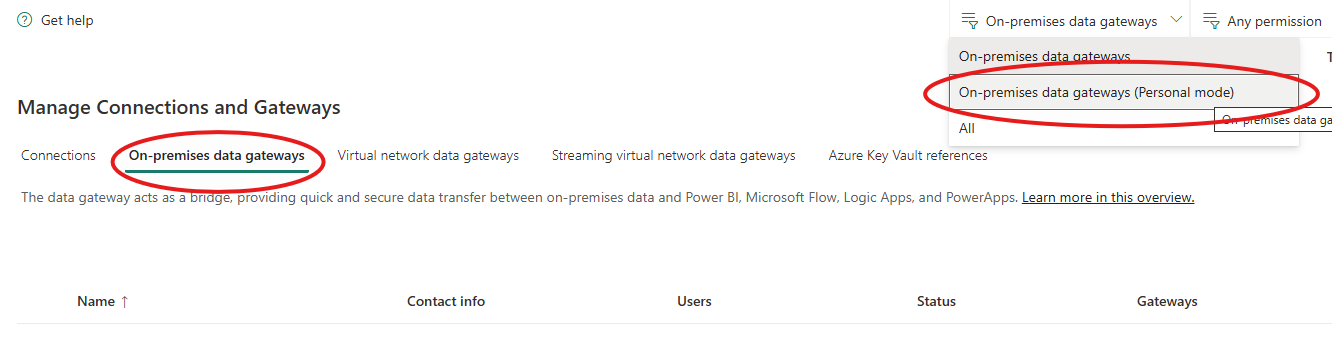
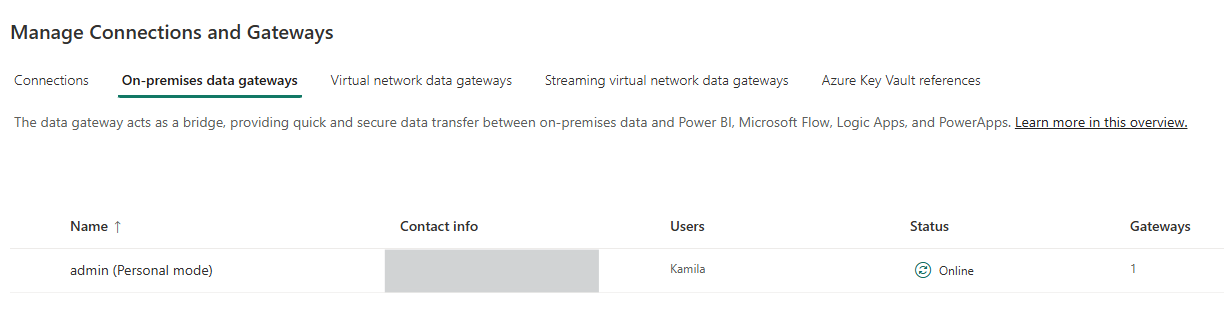
Check that it worked. In the Power BI Service, go to Settings → Manage connections and gateways → On-premises data gateways, and switch the gateway type to Personal mode.
Your gateway should appear there.
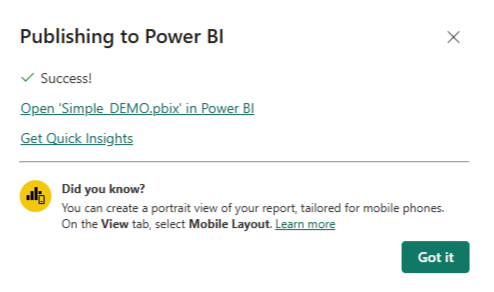
Publish your report from Desktop (Import mode) if you haven’t already done it.
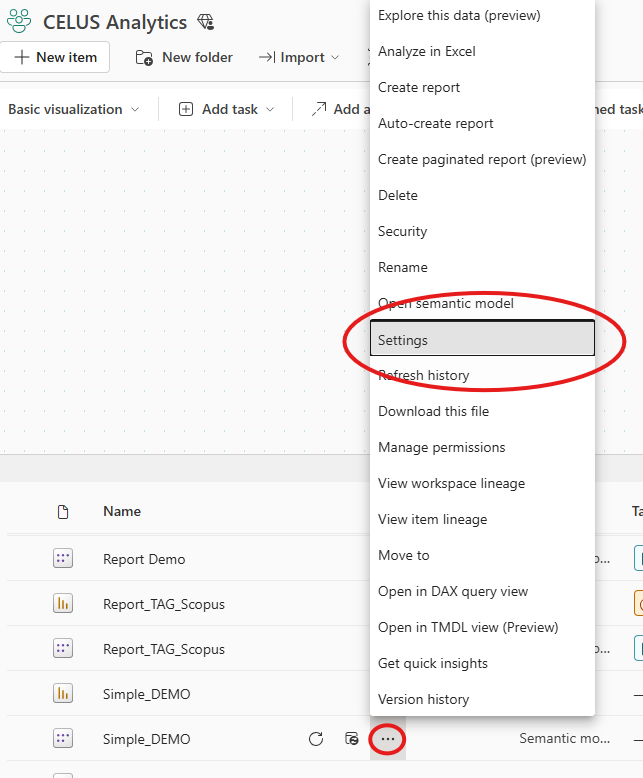
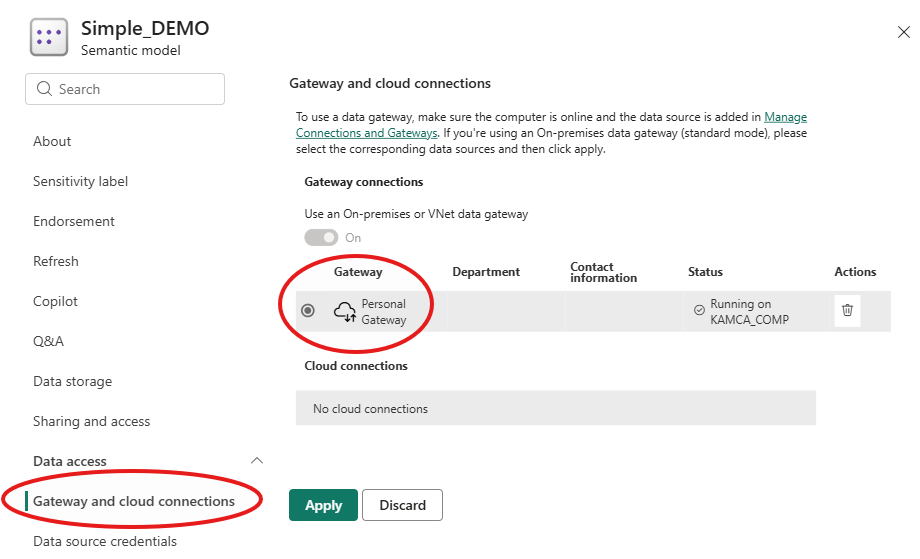
In the Power BI Service, open the semantic model's Settings, go to Gateway and cloud connections, and select the personal gateway.
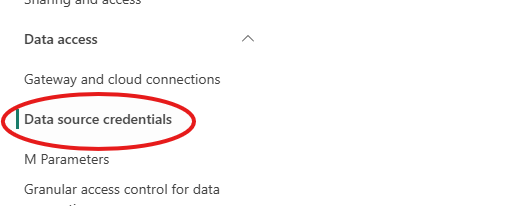
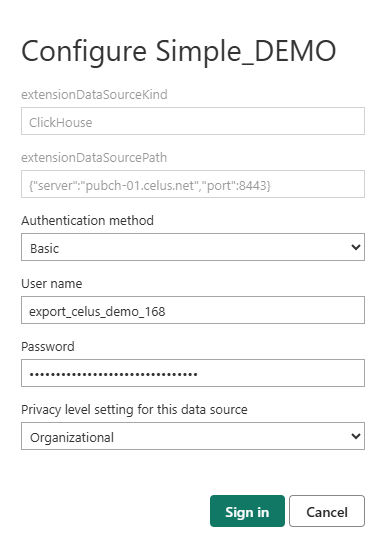
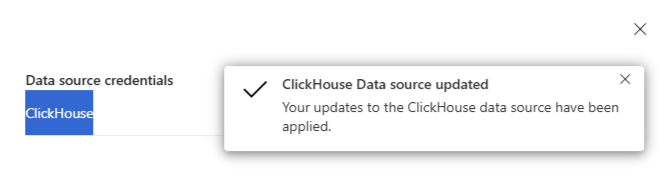
Then enter the Data Hub username and password under data source credentials.