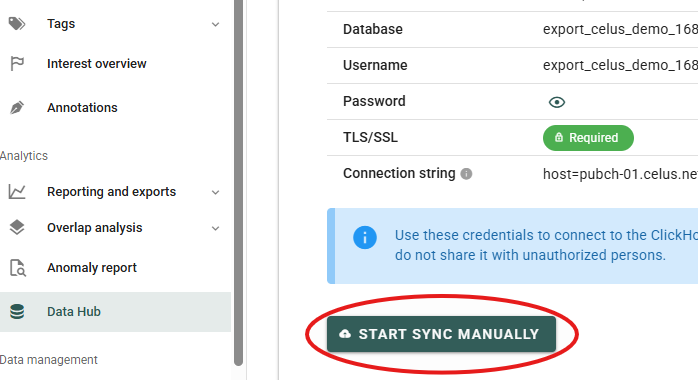
Keeping your usage data up to date is a constant challenge and key issue at the same time. When you use CELUS Data Hub for your Power BI reporting, your data travels from CELUS to your reports, and there are three places to keep an eye on:
This article explains how each of these works, what you can do manually, and how to set it up.
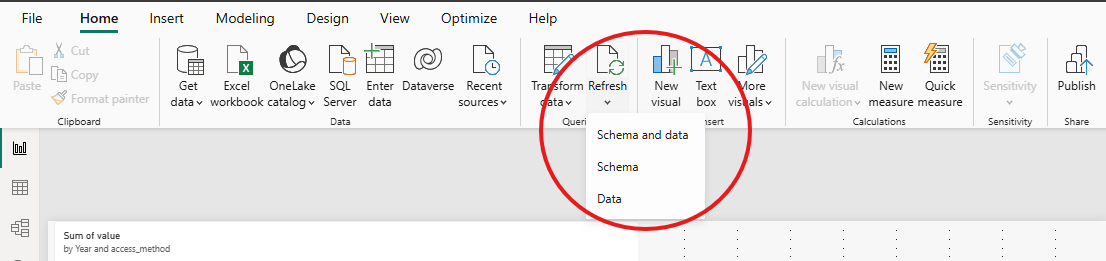
Power BI Desktop is the application installed on your computer. When you connect to Data Hub, you select the connection mode. In Import mode, the most common one, the model loads a copy of the data from Data Hub and keeps it in the file. The data is refreshed only when you request it, so the report does not change when Data Hub is updated.
To refresh the data, click Refresh on the Home tab. Power BI Desktop then loads the latest data from Data Hub into your model.
Before you refresh, make sure Data Hub already contains the data you need, either through the daily automatic update or a manual update (see section 1).
A note on DirectQuery mode: You can also choose DirectQuery mode, where Power BI queries Data Hub each time you open the report instead of keeping a copy of the data in your file. The report then shows whatever Data Hub holds at that moment, but we still recommend Import mode because of limitations of the DirectQuery mode, for example: you have to create the date hierarchy (year, quarter, month) yourself, and publishing to Power BI Service needs extra setup.
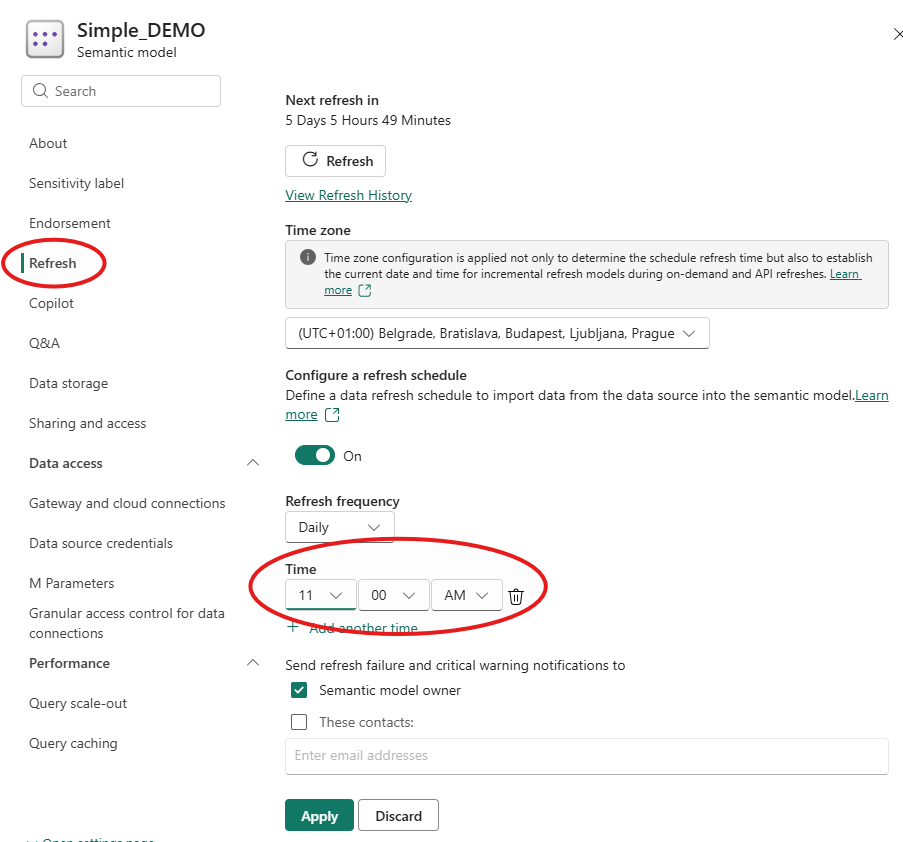
Power BI Service is the Microsoft cloud, where you publish your reports. A published model keeps the data it last loaded, just like in Power BI Desktop, so it needs to be refreshed too. You can refresh it on demand or set up a scheduled refresh, so it updates automatically. For Data Hub data, both options only work with an on-premises data gateway.
The ODBC ClickHouse connector used for Data Hub is available in Power BI Desktop, but it is not built into Power BI Service. Without a gateway, the refresh of a published report fails with an error.
The gateway is a small Windows program that connects Power BI Service to Data Hub. When a refresh runs, the Service passes the query to the gateway, and the gateway fetches the data from Data Hub. More information here: On-premises data gateways in Power BI.
Step-by-step instructions with screenshots for setting up the gateway are in a separate article: ClickHouse - Power BI Service Gateway Setup.
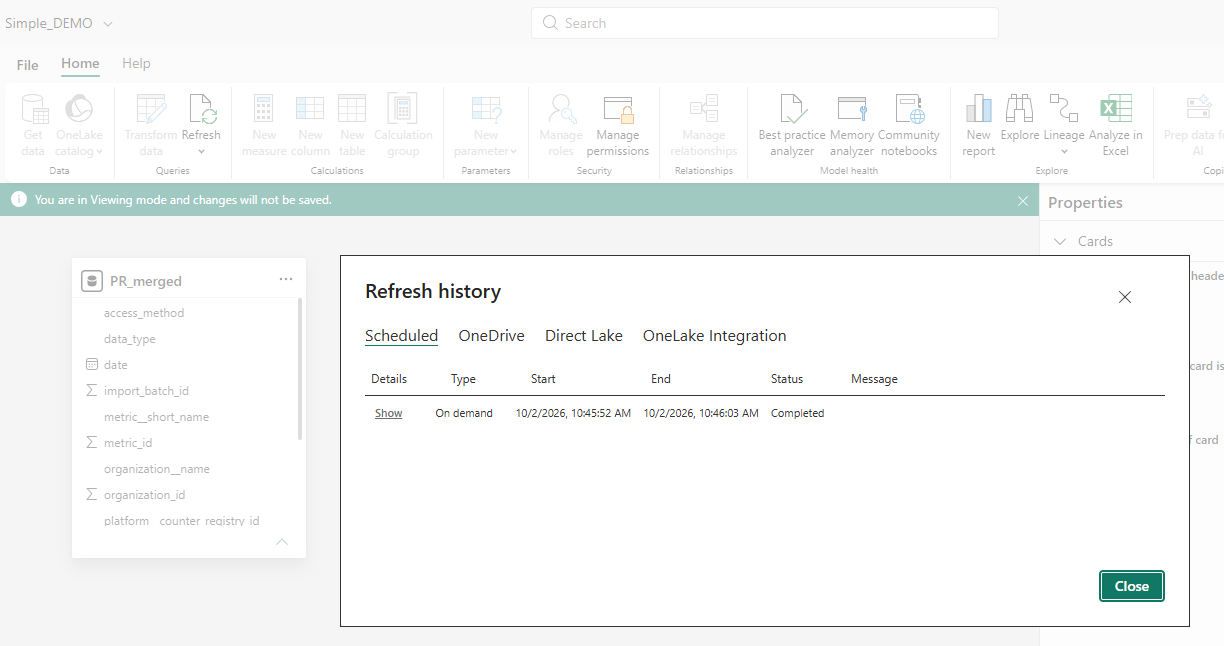
Once the gateway is set up and the Data Hub credentials are entered in the semantic model’s settings, you can refresh the model:
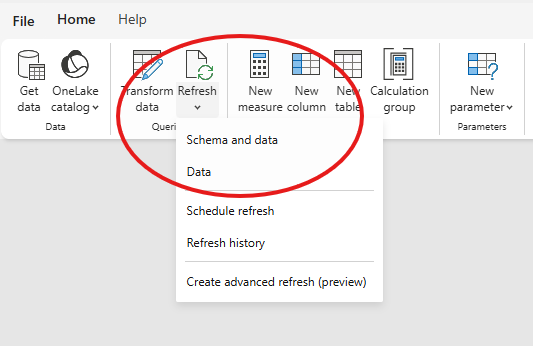
We recommend doing this first to check that the connection works.
If you run into a problem, feel free to contact our support team at ask@celus.net.